Meta Ads Offline Conversions Guide for B2B SaaS
Meta Ads
May 10, 2026
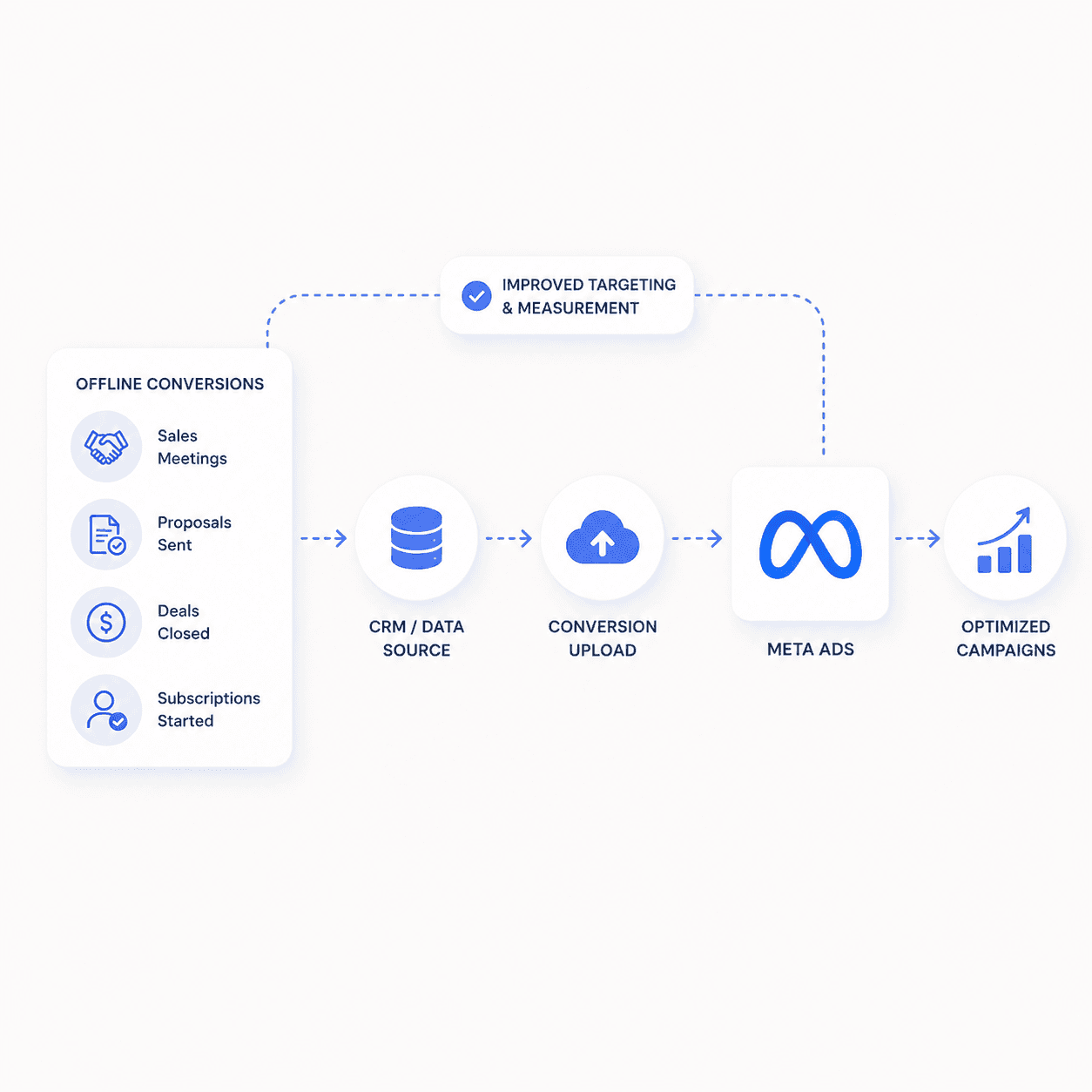
Table Of Contents
Looking for Meta ads support?
We're a small, hardworking US-based team. Book a call and get a free audit today.
Why B2B SaaS Advertisers Need to Track Offline Conversions
When you run Meta ads for B2B SaaS without offline conversion data, the algorithm optimizes for whatever it can see. Usually that means form fills or page views. The problem is that not all form fills are equal—some become $50K contracts while others never respond to a single sales email.only 12% of B2B leads convert to revenue—some become $50K contracts while others never respond to a single sales email.
Feeding Meta your offline conversions lets the algorithm find users who convert into real pipeline and revenue. Over time, Meta learns the patterns: which audiences, placements, and creative combinations drive actual closed deals. Without this signal, you're essentially asking Meta to optimize blindfolded, and the algorithm will happily find you more form fills that go nowhere.
Offline Conversions API vs Conversions API for Offline Events
Here's where things get confusing, and it's worth clearing up. Meta deprecated the standalone Offline Conversions API (sometimes called OCAPI) in late 2024. If you're reading older guides or documentation, they may reference a separate system that no longer exists.
The Conversions API now handles both online and offline events through a unified system. You send offline events to the same endpoint as your server-side web events, just with different parameters that tell Meta the conversion happened offline. Same API, different configuration.
Feature | Offline Conversions API (Deprecated) | Conversions API for Offline Events |
|---|---|---|
Status | Sunset in late 2024 | Current recommended method |
Event types | Offline only | Online and offline |
Integration | Separate setup | Unified with online events |
How to Set Up Meta Offline Conversions in Events Manager
1. Create an Offline Event Set
Start in Events Manager, then navigate to Data Sources, then Add, and select Offline Event Set. Name it something descriptive like "Salesforce Closed Won Events" or "HubSpot Pipeline Events." This dataset stores all the offline conversion data you send to Meta, and a clear naming convention helps when you're managing multiple data sources.
2. Assign the Event Set to Ad Accounts
Next, link the offline event set to the ad accounts you want to attribute conversions to. You can assign multiple ad accounts to one event set, which is useful if you're running campaigns across different accounts for the same business. The connection between event set and ad account is what allows Meta to match conversions back to specific campaigns.
3. Configure Attribution Windows
Select your click-through and view-through windows. For B2B SaaS with longer sales cycles, use the maximum available: 7-day click and 1-day view. Attribution windows determine how far back Meta looks when attributing an offline conversion to an ad click, so longer windows capture more of your sales cycle.
4. Verify Permissions and Dataset Access
Confirm the Business Manager admin has granted the correct permissions. You need both dataset access and ad account access for the integration to work. Missing permissions is one of the most common reasons offline events fail to appear, and it's an easy fix once you know to check for it.
How to Upload Offline Conversions to Meta With a CSV File
The CSV upload method works for testing or low-volume advertisers, though it's not ideal for ongoing use at scale. You're essentially uploading a spreadsheet of conversions manually, which gets tedious quickly.
Format the CSV File
Your columns need to include event_time, event_name, and at least one customer identifier. For identifiers, you can use email, phone, or FBCLID (the Facebook Click ID that gets appended to your landing page URLs when someone clicks an ad). Use ISO 8601 format for timestamps—that's the standard date-time format like "2024-01-15T14:30:00."
Map Required Customer Information Fields
Email addresses need to be lowercase and trimmed of whitespace. Phone numbers require country codes—+1 for US numbers, for example. Meta hashes these fields automatically on upload, but formatting errors will tank your match rate before the hashing even happens.
Upload and Review the Match Rate
After upload, Meta displays a match rate showing what percentage of events matched to Meta users. A match rate below 30% indicates formatting or data quality issues. Above 50% is solid; above 70% is excellent. If your match rate is low, check your email formatting first—that's usually the culprit.
How to Send Offline Events Using the Conversions API
The Conversions API is the recommended method for B2B SaaS advertisers with CRM automationThe Conversions API is the recommended method for B2B SaaS advertisers with CRM automation, shown to reduce cost per quality lead by 15%. It enables real-time or near-real-time event transmission without manual uploads, which means your data flows automatically as deals progress through your pipeline.
1. Configure Offline Event Parameters
Set the action_source parameter to "system_generated" or "physical_store" for offline events. This parameter tells Meta the event did not happen in a browser. Without it, Meta may treat your offline events as online conversions, which creates attribution confusion.
2. Hash Customer Information Before Sending
All PII (personally identifiable information) like email, phone, and name requires SHA-256 hashing before transmission. Do not send unhashed data—Meta will reject it, and you'd be exposing customer information unnecessarily. Most CRM integrations handle hashing automatically, but verify if you're building a custom integration.
3. Attach Custom Data and Event Value
Include event_name (like "Purchase" or a custom event like "ClosedWon"), value, and currency. For B2B SaaS, send contract value or ACV (annual contract value) as the value parameter—this data directly informs your target ROAS calculations. Including value helps Meta understand which conversions are worth more, so the algorithm can optimize toward higher-value deals.
4. Fire the Event Through the API
Send events within 24-48 hours of occurrence for best attribution. Events delayed more than 7 days after the original ad click may not attribute correctly. The sooner you send the event, the better your attribution accuracy.
How to Connect Meta Offline Conversions Through CRM Partner Integrations
Pre-built connectors require no custom code, which makes them the right path for teams without developer resources. The tradeoff is less flexibility, but for most B2B SaaS setups, the standard integrations cover what you need.
HubSpot to Meta Offline Events
HubSpot offers a native Meta integration, or you can use a third-party connector. Trigger events when deals move to specific pipeline stages—like when a deal moves from "Demo Scheduled" to "Proposal Sent." The native integration handles the hashing and formatting automatically.
Salesforce to Meta Offline Events
Salesforce requires middleware or a custom integration since there's no native connector. The common approach uses Salesforce flows to trigger events to a middleware layer (like Zapier or a custom Lambda function) that then sends to Meta. It's more setup, but it works reliably once configured.
Zapier and Middleware Connectors
Tools like Zapier, Make, or Segment can bridge CRM events to the Conversions API without custom development. Set up a trigger-action workflow: when a deal closes in your CRM, send a "Purchase" event to Meta with the deal value. Zapier's Meta integration handles the API formatting, so you're mostly just mapping fields.
Mapping B2B SaaS Pipeline Stages to Meta Offline Events
Sending the right CRM stages as events helps Meta optimize for pipeline quality, not just lead volume. The key is choosing stages that represent meaningful progression toward revenue.
MQL Events: Marketing Qualified Lead—send when a lead meets your scoring threshold, indicating they've shown enough engagement to warrant sales attention
SQL and Demo Booked Events: Sales Qualified Lead and demo scheduled indicate sales team engagement and are stronger signals than MQL since a human has validated the lead
Opportunity Created Events: When a deal enters your pipeline with an estimated value; include the opportunity value as the event value so Meta can weight it appropriately
Closed Won Revenue Events: The most valuable event; send this when a deal closes with the actual contract value
Setting Attribution Windows for Long B2B Sales Cycles
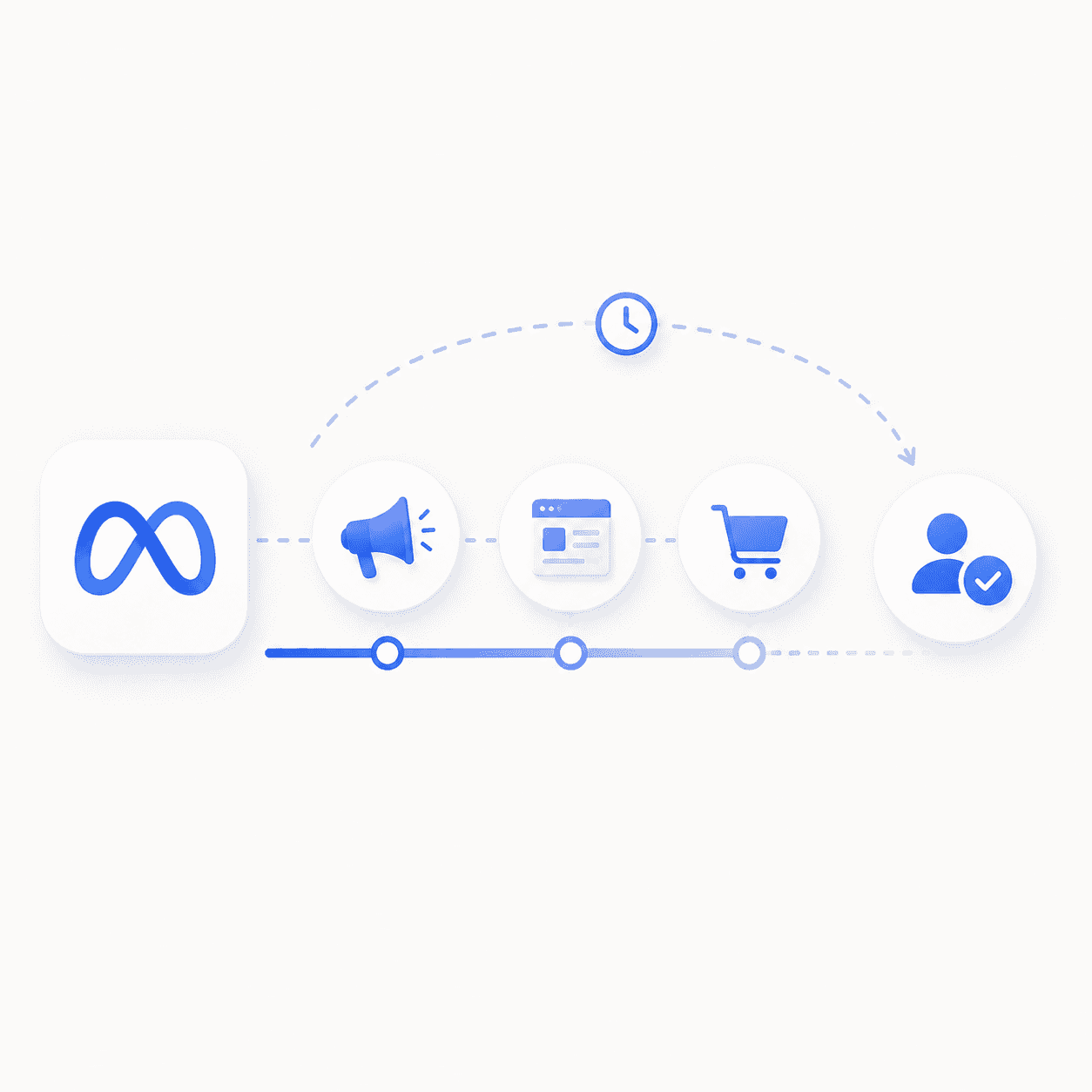
B2B deals often take weeks or months to close, but Meta's offline event attribution windows max out at 7-day click and 1-day view. This creates a real limitation for longer sales cycles.
If your average sales cycle is 45 days, If your average sales cycle is 45 days—and the median B2B SaaS cycle is 84 days—the closed-won event won't attribute to the original ad click because too much time has passed. The workaround is to optimize for earlier-stage events (MQL, SQL, demo booked) that occur within the 7-day window. You can still send closed-won events for reporting purposes, but don't expect them to attribute consistently to specific campaigns.
How to Deduplicate Offline and Online Conversion Events
If you track the same event both online (via Pixel) and offline (via Conversions API), Meta may double-count. The event_id parameter solves this problem.
Send the same event_id from both sources for the same conversion, and Meta will count it once. For example, if a demo form submission fires both a Pixel event and a Conversions API event, both should include an identical event_id. The ID can be any unique string—a form submission ID, a CRM record ID, or a generated UUID all work fine.
Viewing Meta Offline Conversion Reporting
In Events Manager, you can view match rates and event volume for your offline event sets. The data typically appears within 24-48 hours of upload or API transmission, so don't panic if you don't see events immediately.
In Ads Manager, add the custom conversion column to see attributed offline conversions per campaign. You'll find this under "Customize Columns" by searching for your offline event name. Once added, you can see exactly how many offline conversions each campaign, ad set, and ad generated.
Troubleshooting Low Match Rates and Missing Offline Events
When offline events aren't appearing or match rates are low, the cause is usually one of a few common issues:
Unhashed PII: Data sent via API requires SHA-256 hashing before transmission; unhashed data gets rejected
Incorrect email formatting: Emails need to be lowercase with no leading or trailing spaces; even one space breaks the match
Missing country codes: Phone numbers require country codes (+1 for US); domestic formatting won't match
Event timing delays: Events uploaded more than 7 days after the click may not attribute to the original ad
Permissions errors: Confirm dataset and ad account permissions in Business Manager; missing permissions is the most common fixable issue
Scale Meta Offline Conversions With Flighted
Setting up offline conversions is one piece of a larger attribution infrastructure. At Flighted, we handle this as part of our Meta Ads management—building the tracking foundation alongside Creative Strategy and Landing Page Optimization so your campaigns can actually scale on real revenue data, not just form fills.
Book a call to talk through your current setup and where the gaps are.
Frequently Asked Questions About Meta Offline Conversions
How long does it take for offline conversions to appear in Meta Ads Manager?
Offline conversions typically appear within 24-48 hours after upload or API transmission, though some delays may occur during high-volume periods.
Can Meta use offline conversions to optimize Advantage Plus campaigns?
Yes, offline conversion events can be used as optimization goals in Advantage+ Shopping and Advantage+ App campaigns, allowing Meta to find users likely to convert offline.
What is the minimum match rate needed for offline conversions to be useful?
Aim for a match rate above 30%; below that threshold, Meta cannot attribute enough events to optimize effectively, and you'll want to audit your data formatting.
Why am I getting ad clicks but no offline conversions attributed?
This usually indicates a data formatting issue, a permissions misconfiguration, or that your offline events are occurring outside the attribution window—check that events are uploaded within 7 days of the click.